

1. Public Search
Browse millions of publicly available influencer profiles using third-party data for estimated metrics.
2. Post Search
Search for creators based on specific keywords. Post Search specifically searches between profiles connected to Sheer, and therefore gives a much higher level of accuracy to match the keyword. The specific post that match the keyword will also be featured, including stories on Instagram.
3. Creator Shortlists
Easily create, manage and export lists of influencers for your specific needs directly in Sheer, and how to use them during your influencer search.
4. Sheer Chrome Extension
Access third-party creator data when browsing their TikTok or Instagram account directly in the browser.
Public Search 🔎
Public Search is a discovery tool that gives you access to one of the largest influencer databases available with nearly 400 million profiles across Instagram and TikTok, plus over 11 million on YouTube. Using filters for both influencer and audience data, you can tailor your search to your campaign goals.Overview of Public Search
- Specific influencer search - Search for a single specific profile to access their Mediakit with estimated data.
- Keyword search - Search for a single word or sentence as a whole. Sheer will only show influencers if there is a match with the keywords in the influencers bio or captions of their posts.
- Audience filters - Search based on the audience data of your desired influencer, such as age groups, location, interests, etc.
- Influencer filters - Search based on the influencers data, such as following size and country.
- Other filters - Additional filters applied to further narrow your results, such as excluding business accounts.
- Shortlist filters - How to use shortlists in Public Search to your advantage.
- Good to know features - quick tips to optimize your use of Public Search
Specific influencer search
To find a single specific creator to access their Mediakit with estimated data, use the @ sign in conjunction with the creators handle. For example, to find Rasmus Brohave’s profile in Public Search, simply search for @rasmusbrohave in the keyword bar: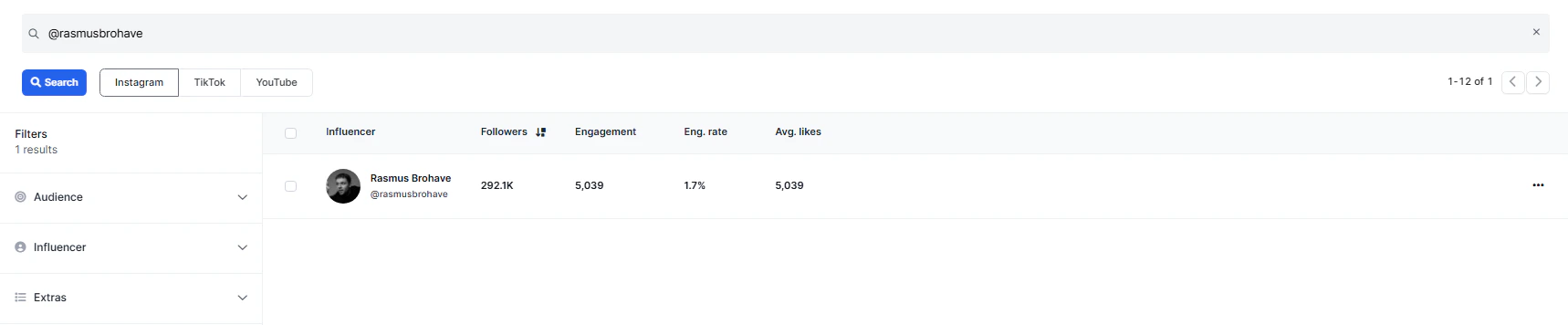
Keyword search
A keyword search allows you to find influencers by searching for a specific word or an exact sentence. Sheer scans the influencer’s bio and captions of their posts to identify relevant matches. Influencers will only appear in the results if the keyword or phrase is found in their bio or post captions on mimimum one instance, ensuring that the profile results are directly related to your search.Audience filters
Filter by the influencer’s followers by applying a minimum percentage requirement for each specific filter.- Age Groups - Filter for audiences within specific age brackets.
- Gender - Filter audiences by male or female.
- Location - Filter influencers by the top countries where their audience resides.
- Language - Identify influencers whose audiences primarily speak a particular language. This filter is recommended if the location filter results in too many English speaking audiences.
- Audience Interests (IG only) - Filter by audience interests such as fashion, fitness, family, gaming, travel, and more.
Influencer filters
Filter specifically for the desired influencer.- Influencer size - Filter by the size of the influencer’s following.
- Influencer average views - Filter by the average views of the profile. Average views are calculated based on the 10 most recent posts.
- Influencer age - Filter by the influencers age in age ranges. This data is an estimate, so disable if your search provides too narrow results.
- Gender - Filter by influencer gender.
- Location - Filter by influencer’s country of origin.
- Note: Larger cities may also be applied to influencer location in case your campaign is geographical specific within a country.
- Profile language - Filter for the language the influencer uses on their profile. Apply only if the Location filter does not provide the desired local result.
- Last post date - Filter influencers by their most recent activity, ensuring only active profiles show up in your search.
Other filters
These additional filters help clean up your search results by removing non-relevant or ineligible profiles.- Exclude business account (IG only) - Removes majority of brand or company-run profiles.
- Exclude private account - Filters out profiles that are not publicly viewable.
- Has sponsored posts (IG Only) - Only discover profiles who have previously published sponsored content on their profile using the platform specific “paid partnership” features.
Good to know tips for Public Search
- Enabling “open socials” for multiple creators at once - You may select multiple creators in the search tab and open all their social profiles with the click of a simple button. This requires allowing “pop up windows” in your browser for Sheer.
- Note for TikTok: TikTok may flag you for opening too many profiles at once and provide a 5 minute timeout on the website. Limit to opening 6 profiles at most to avoid receiving a timeout. This is not an issue with Instagram.
Post Search 🖼️
Post Search helps you quickly find specific content based on a keyword across Instagram posts, reels, stories and TikTok videos that matches the relevancy of your marketing activities. Instead of manually browsing profiles, you can search by keyword and instantly see the exact posts where the keyword appears. Sheer highlights the specific post where the keyword was triggered, along with key details such as the type of post, date it was published, as well as performance metrics. Each result is clickable, allowing you to open the content directly in Sheer or follow a link to the original platform for full context. Post Search only searches within creators connected to Sheer, it also includes stories that were captured while live, giving you visibility into content that is otherwise unavailable. Below is an example of a Post Search with the keyword “pilates”.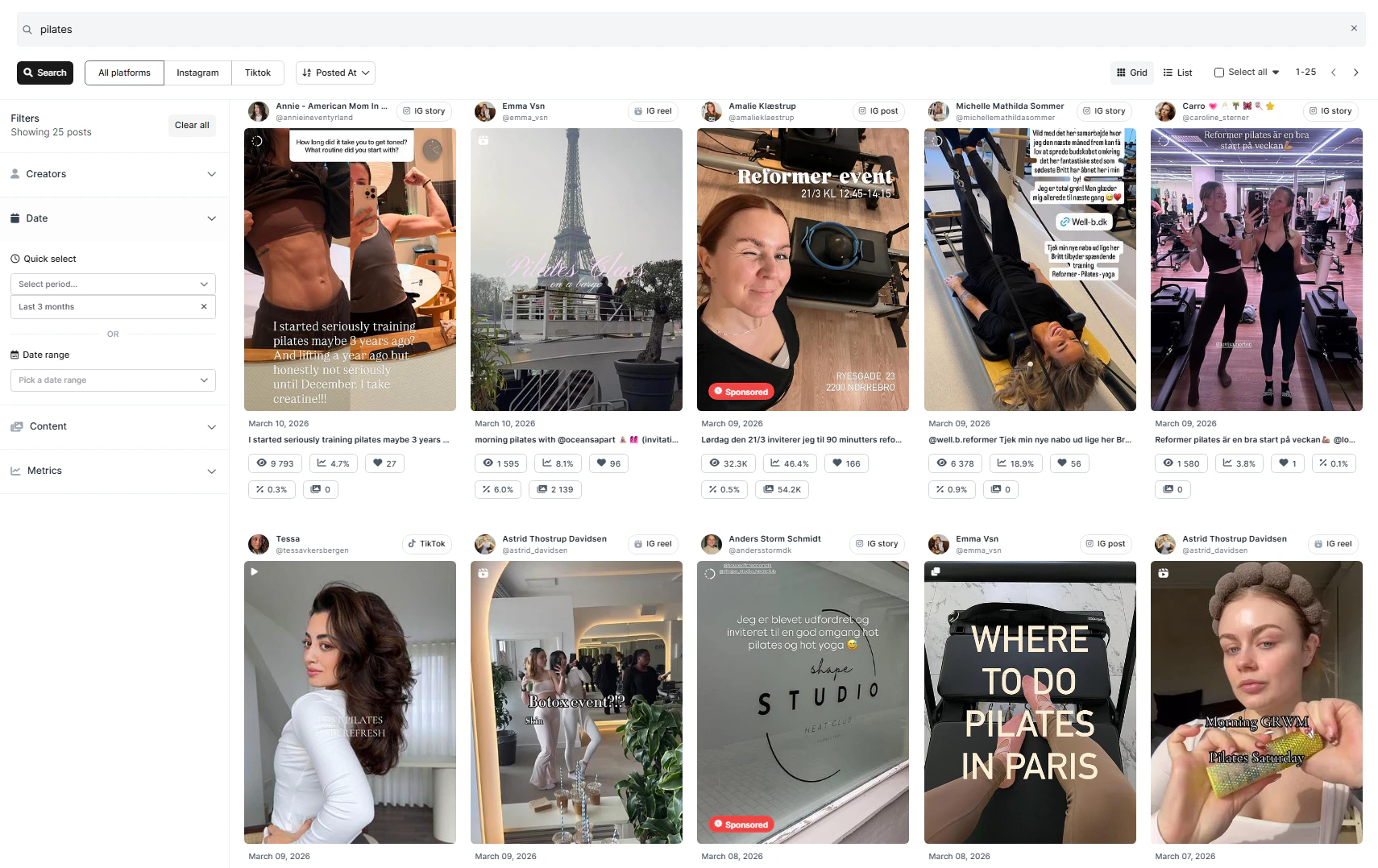
Post Search filters
- Creator - Limit results to specific creators.
- Date - Choose the time period to search within.
- Quick select - Select between pre-selected periods. By default, the last 3 months is selected.
- Date Range - Select between a specific start and end date.
- This is is useful for finding creators who have shared specific content in relation to an event or otherwise limited period.
- Content - Refine results by media type and optionally limit the search to sponsored content only.
- Sponsored posts make it easy to quickly spot potential conflicts with competitor brands in an influencer’s recent content, without the need to manually scroll through their feed.
- Metrics - Apply performance-based filters with minimum or maximum values. These filters include:
- Reach
- Reach efficiency
- Total interactions
- Total interaction rate
- Views These filters are great when you have performance-based minimal requirements, however for specific campaigns we recommend leaving these blanc to begin with, then apply if the amount of search matches are overvelming and further filtering is needed.
Shortlists 📋
Shortlists are customizable, self-managed influencer lists in Sheer that help you keep track of creators of special interest, future collaborations, or specific campaigns. They can both be created and managed within Sheer. Keep track of creators with Shortlists Head to the Shortlists tab and create a new list. We recommend creating a list prior to starting your influencer search to continuously add influencers that matches your interest. Shortlists can be used to your advantage during your Public Search, and can later be exported to Excel for an easy overview.Shortlists in Public Search as a filter
Exclude Shortlist profiles from your Public Search By default, adding a Shortlist as a filter excludes those profiles from your current search results. This is ideal for:- Preventing profiles you’ve already reviewed as a great fit from reappearing in future searches.
- Hiding influencers you’ve ruled out from reappearing in future searches.
- You want to search through shortlists using new filters, thereby only seeing influencers from previously saved shortlists.
- Example: The target audience for a new campaign is now primarily ages 25+, allowing you to find influencers from previous lists who now only matches the new filters.
- You’re preparing a marketing activity using handpicked profiles and want to refine them further.
- Example: You made a list of 40 creators, but you only want to proceed with the 20 creators that best matches your target audience. Tighten the filters to meet your new requirements to now find only the best on your list.
Sheer Chrome Extension 🌐
View influencer analytics and manage shortlists directly while browsing profiles. Instantly view accurate influencer and audience analytics while browsing profiles, right inside your browser. Whether you’re scouting for your next collaboration or refining your campaign strategy, the Sheer Chrome Extension brings your influencer data directly to you, streamlining research and decision-making without leaving the page.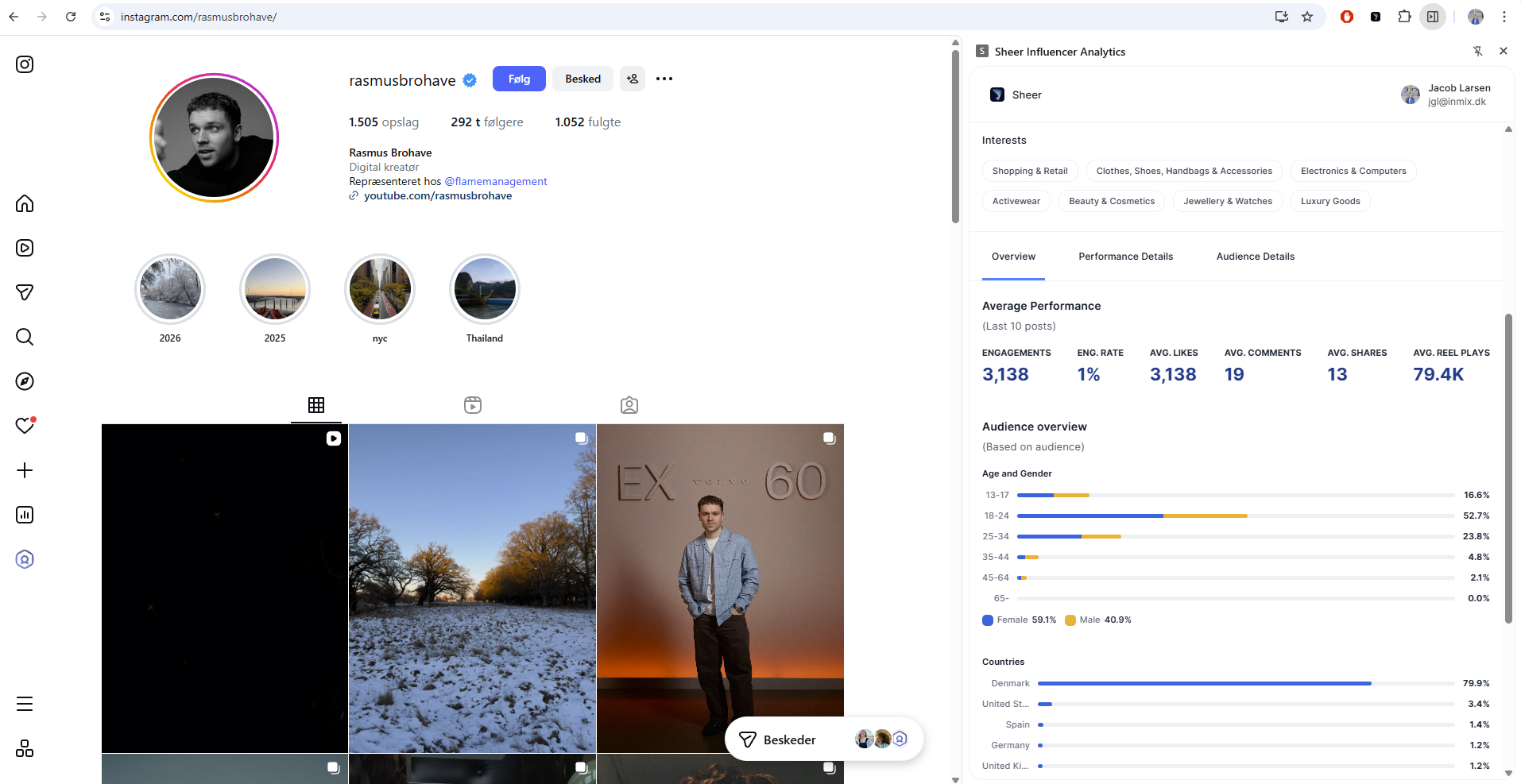
- 1️⃣ Install the Sheer Chrome Extension Here.
- 2️⃣ Log in with your licensed Sheer account.
- 3️⃣ Browse profiles as usual — open the extension to view real-time analytics and add creators to your shortlists.
- Pin the Sheer Chrome Extention to have it readily available when browsering profiles online.
- Look at the top-right corner of your browser and click the puzzle-shaped “Extensions” button.
- Click the pin icon to keep the Sheer Browser Extension always visible.
- Adjust the size of the browser extention to fit your set-up.
- Open the Chrome Extension - Click on the extension icon in your browser.
- Resize the Window - Hover over the separation line until your cursor changes to a double-sided arrow.
- Drag to Adjust - Click and drag the line to resize the extension to your preferred width.
Struggle to find the influencers you are looking for?
There are tons of minor adjustments that can be made while finding the perfect influencers that best fit your campaign. To aid you in this, here are a couple of workflow tips for adjustment.- Start narrow → then widen your search Begin by filtering for influencers whose audience matches your target audience. This quickly narrows the search and ensures you start with the most relevant profiles before expanding your criteria by loosening the restrictions of your filters.
- Use content style keywords over category keywords It’s natural to search with category keywords like “fitness” when looking for a fitness creator. While this works, content-style keywords often produce better results. Many creators include topics like fitness within broader lifestyle content, which may not always appear clearly in category labels.
- Examples of useful content-style keywords: vlog, get ready with me, routine, day in my life, what I eat in a day. These keywords reflect popular content formats and are commonly used in captions, making them highly searchable.
- Audience interests (IG only) An influencer’s audience often reflects the creator’s own interests. Filtering by audience interest categories can help you discover influencers whose followers are already interested in your campaign topic.
- Avg. views vs. follower amount filters Applying a minimum Avg. Views filter helps prioritize creators based on performance rather than follower size. This often surfaces more relevant profiles that:
- Fit your campaign budget
- Have stronger engagement with their audience
- Influencer topic as a filter The Influencer Topics filter is very specific. It pre-categorizes influencers into topics using third-party data, which means the results are highly targeted but limited in number. Use this filter when you need to find very niche profiles. However, if your search results are too narrow, we recommend removing this filter to expand your potential matches.
- Save your search URL Sheer’s search browser URL is specific to the search filters entered and page number you are at. You can save it by copying the URL or saving it as a bookmark to easily jump back in to exactly where you left off in your search session. The URL can also be sent to a team member so they can continue where you left off to avoid double work.