

Trial reels let you handle Instagram Reels that are experimental so they don’t affect your performance metrics. Trial reels are excluded from analytics, keeping your numbers clean and representative.Documentation Index
Fetch the complete documentation index at: https://help.sheer.dk/llms.txt
Use this file to discover all available pages before exploring further.
Why handle trial reels?
Sometimes you want to test a new format, hook, or topic without it skewing your analytics. Any reel handled as a trial is excluded from your performance data and shown with a Trial Reel badge in the UI.How to mark a reel as a trial reel
The reel will now display a Trial Reel badge and be excluded from your analytics.
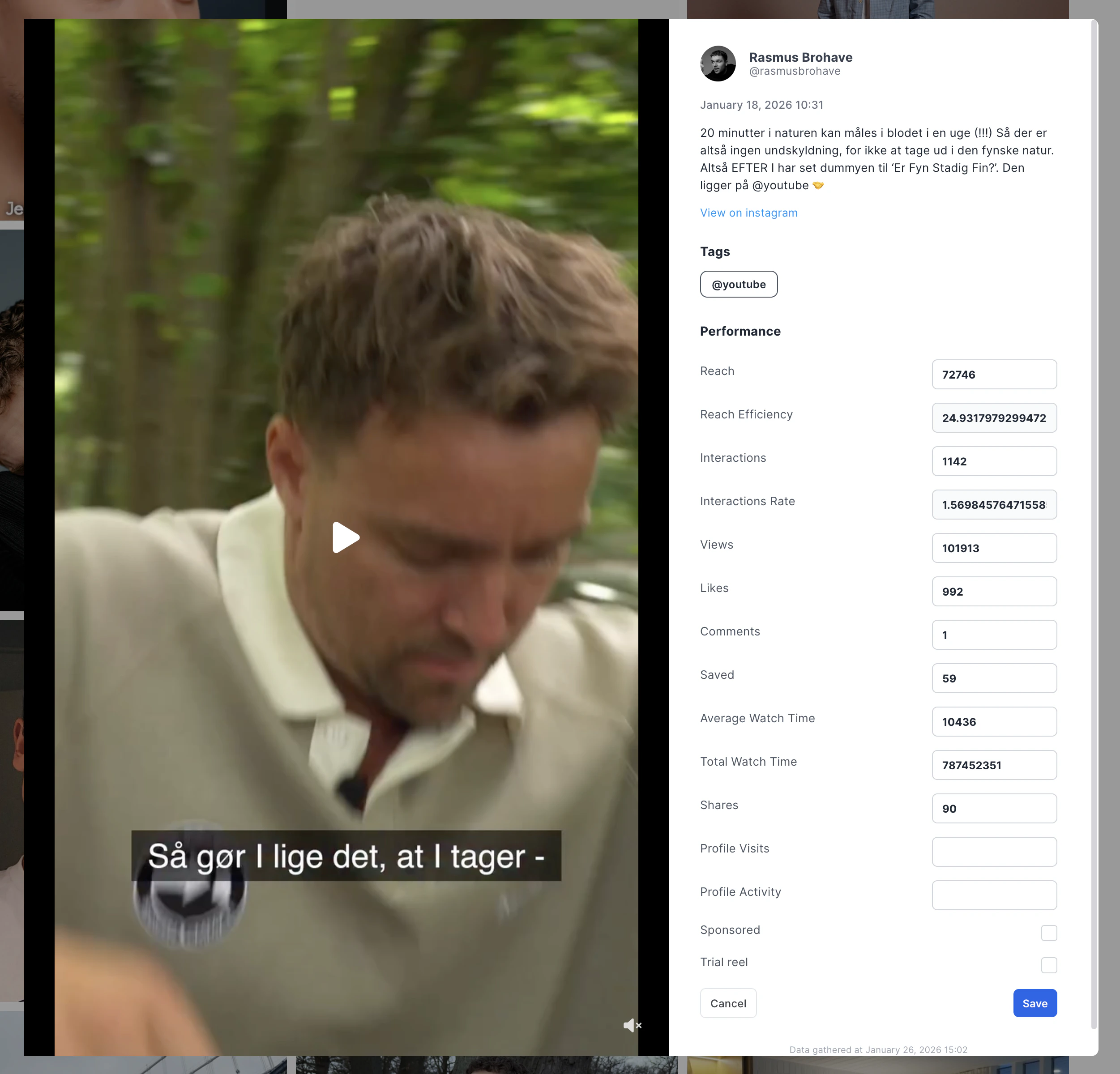
How to view trial reels
By default, trial reels are hidden from the performance view. To see them:Good to know
- Trial reels only apply to Reels. Not posts, stories, or other media types.
- Reels must be manually tagged as trials. Currently they are not detected automatically.
- Tagging is reversible. Incheck the checkbox to restore the reel to normal status.
- Only the creator (or a talent manager) can tag their own reels.