

If Sheer isn’t showing your Instagram data, you’ve likely turned off insights access during the initial connection. Here’s how to fix it.Documentation Index
Fetch the complete documentation index at: https://help.sheer.dk/llms.txt
Use this file to discover all available pages before exploring further.
Why this happens
When you first connect Instagram to Sheer, Instagram asks you to approve two permissions. One of them — Access and manage insights — is optional and can be toggled off. If it’s off, Sheer can’t read your analytics.How to fix it
Open your Instagram app settings
Go to instagram.com/accounts/manage_access and make sure you’re on the Active tab.
Find Sheer and click View and edit
Locate Sheer in your list of connected apps and click the View and edit button.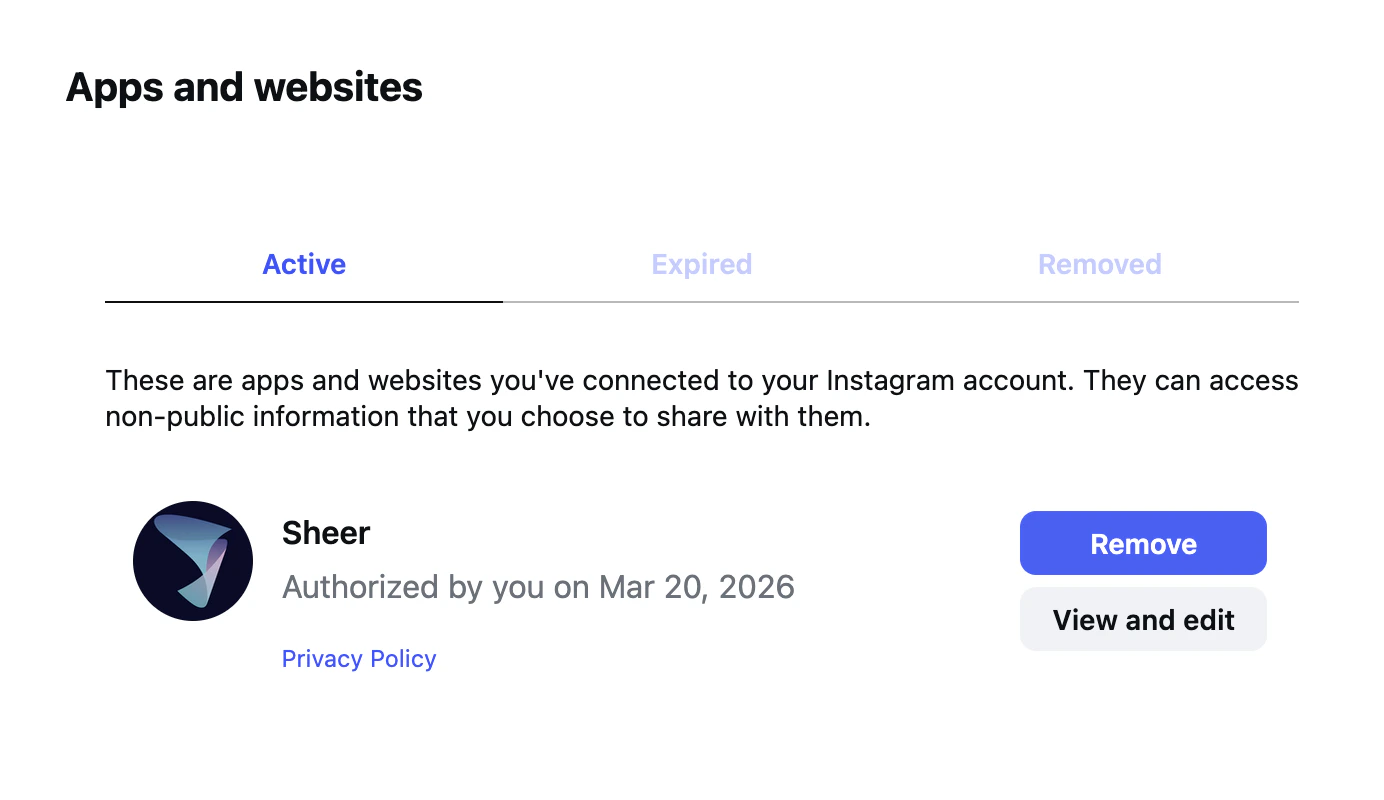
Toggle on Manage insights
Under Info you’re sharing with this app, toggle Manage insights of a business to ON.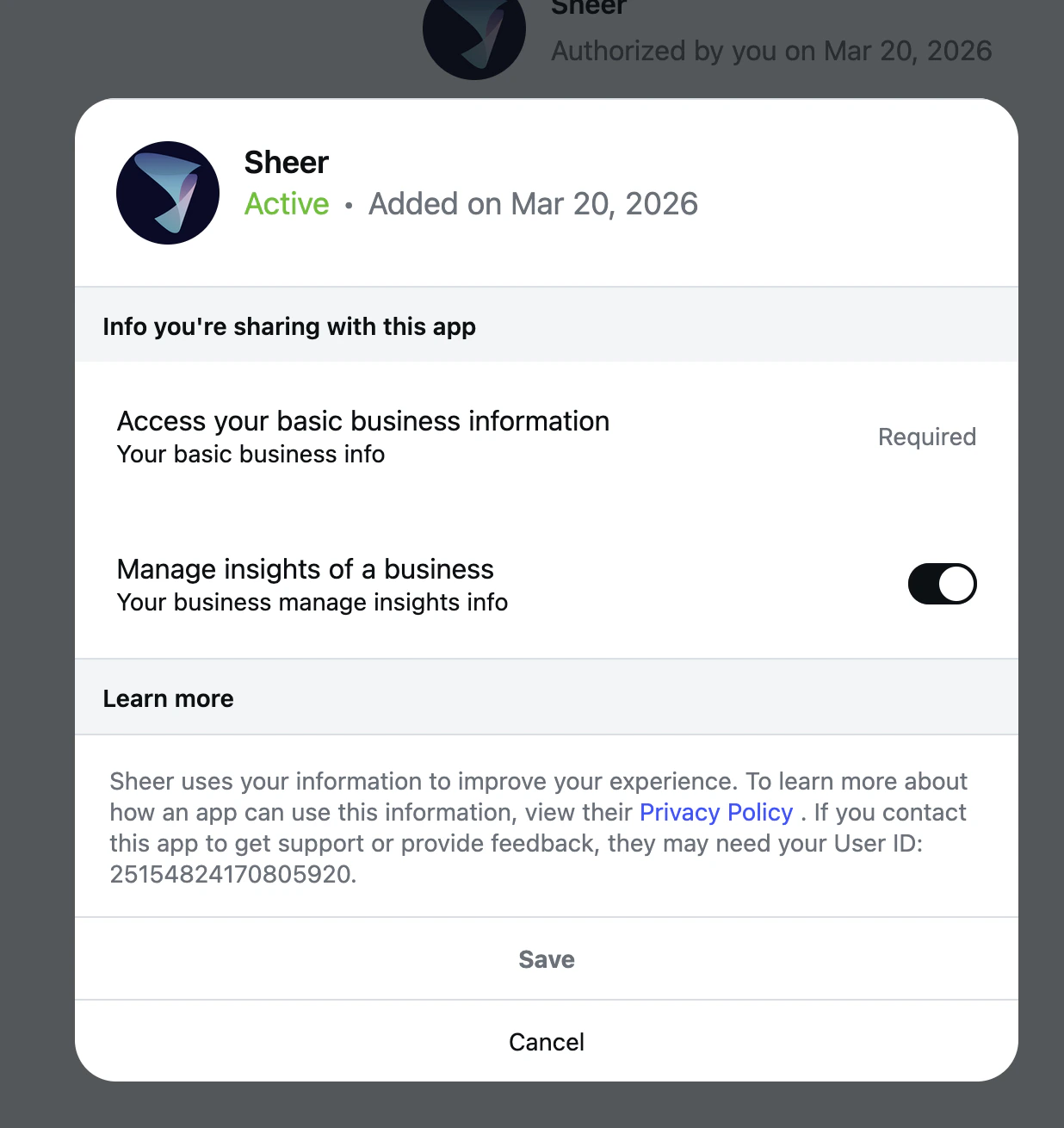
If you’ve confirmed insights access is on and data still isn’t showing up, reach out to us at
support@sheer.dk.